How to use it
From an empty project to a finished clip.
Seven steps. The longest part is marking the action, and that is just watching your own video and pressing a button each time something happens.
Start a new project
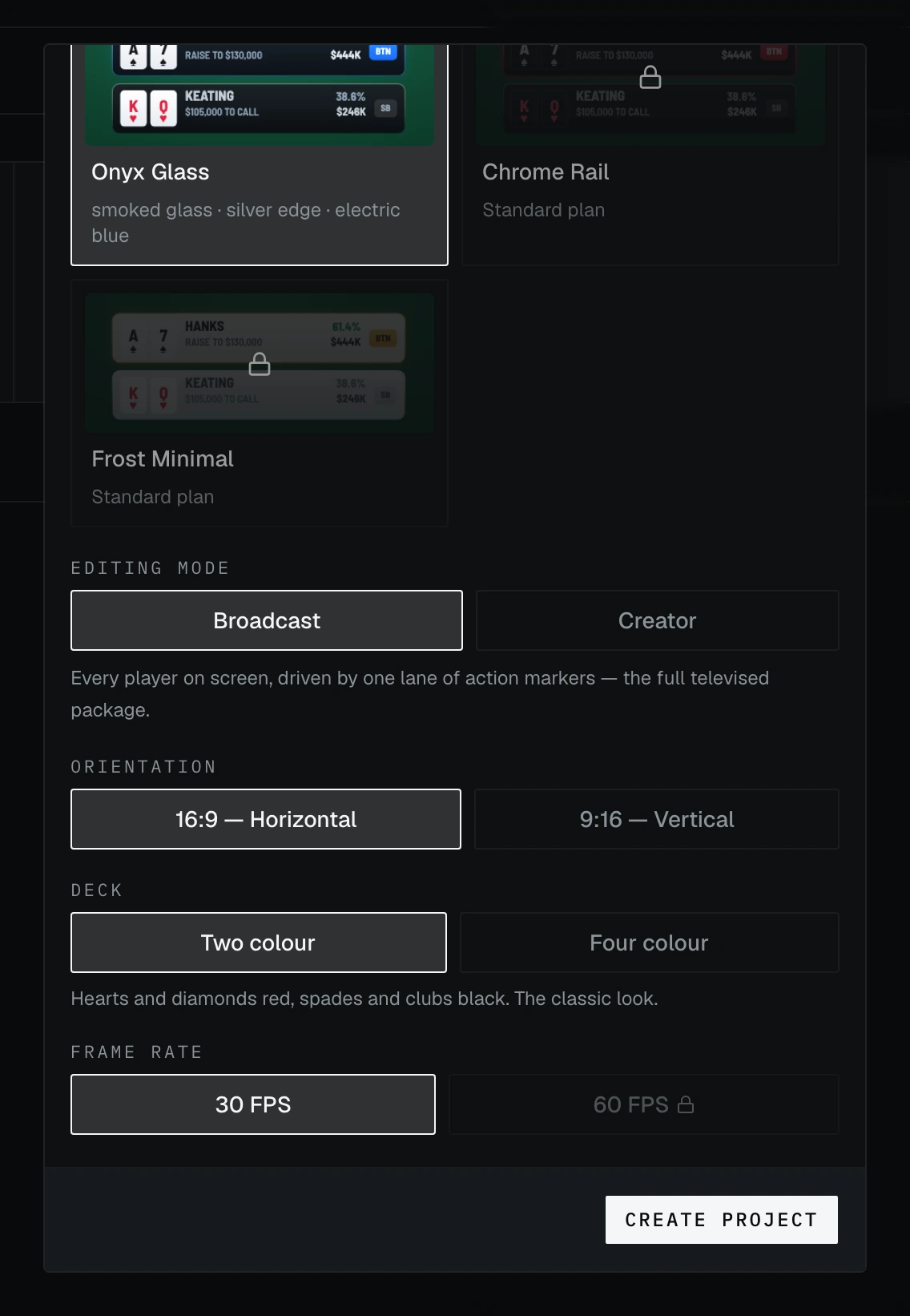
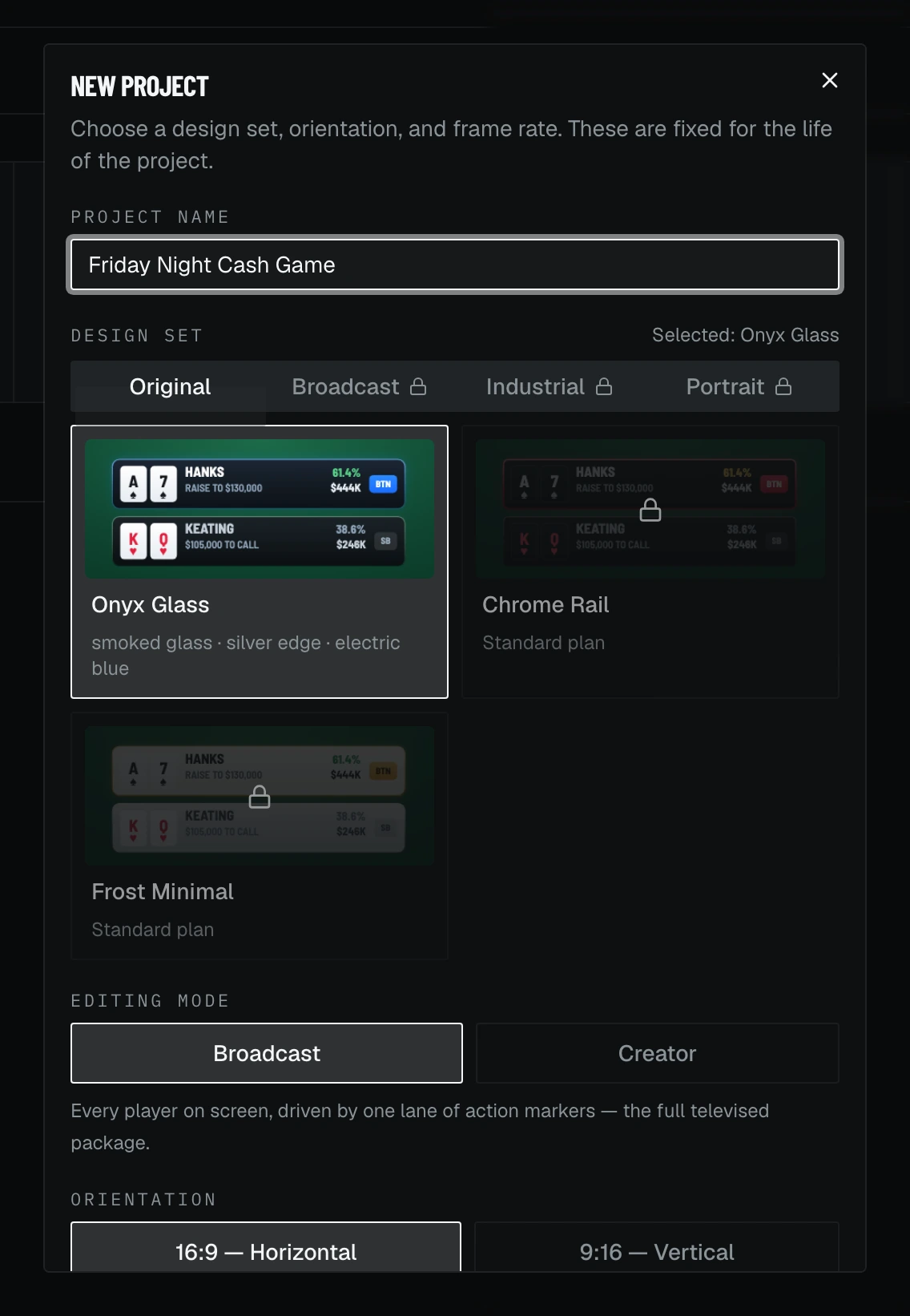
Name it, then make the handful of choices the whole project hangs on.
Editing mode — Broadcast or Creator — plus orientation, frame rate and whether the deck is two-colour or four. Broadcast puts every player on screen and drives them from one lane of action markers; Creator is the vertical, one-or-two-players cut for reels.
Orientation, frame rate and the design set are fixed for the life of the project. Everything else can change later.
Choose a design set
The look your graphics wear, picked in the same dialog.
Sets are grouped into families — Original, Broadcast, Industrial and Portrait — and each one is a complete package: player rows, board and pot, the info bar, every animation. Onyx Glass comes with the free plan; the rest unlock with Standard and Pro.
This is the one choice you cannot revisit, so it is worth a moment. A project keeps the set it was made with.
Bring in your footage
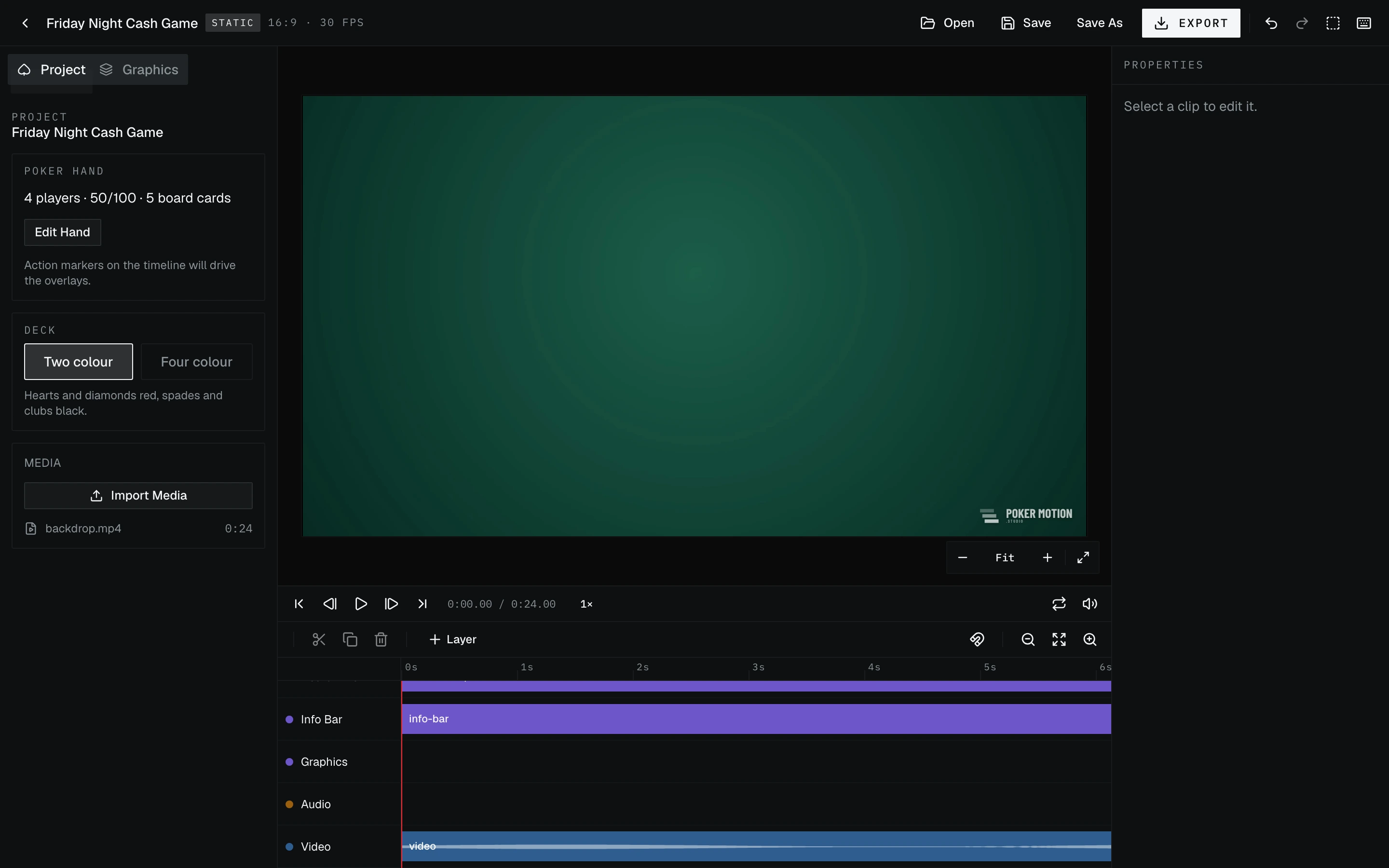
Import Media, or drag the file straight in from your desktop.
Clips land on the timeline with their audio drawn on them, which is usually the fastest way to find the moment a card hits the felt. Video and audio files both work, and several at once are fine.
Free projects cap the timeline at three minutes and Standard at ten. Longer footage is cut to fit, and the app says so rather than failing quietly.
Build the hand
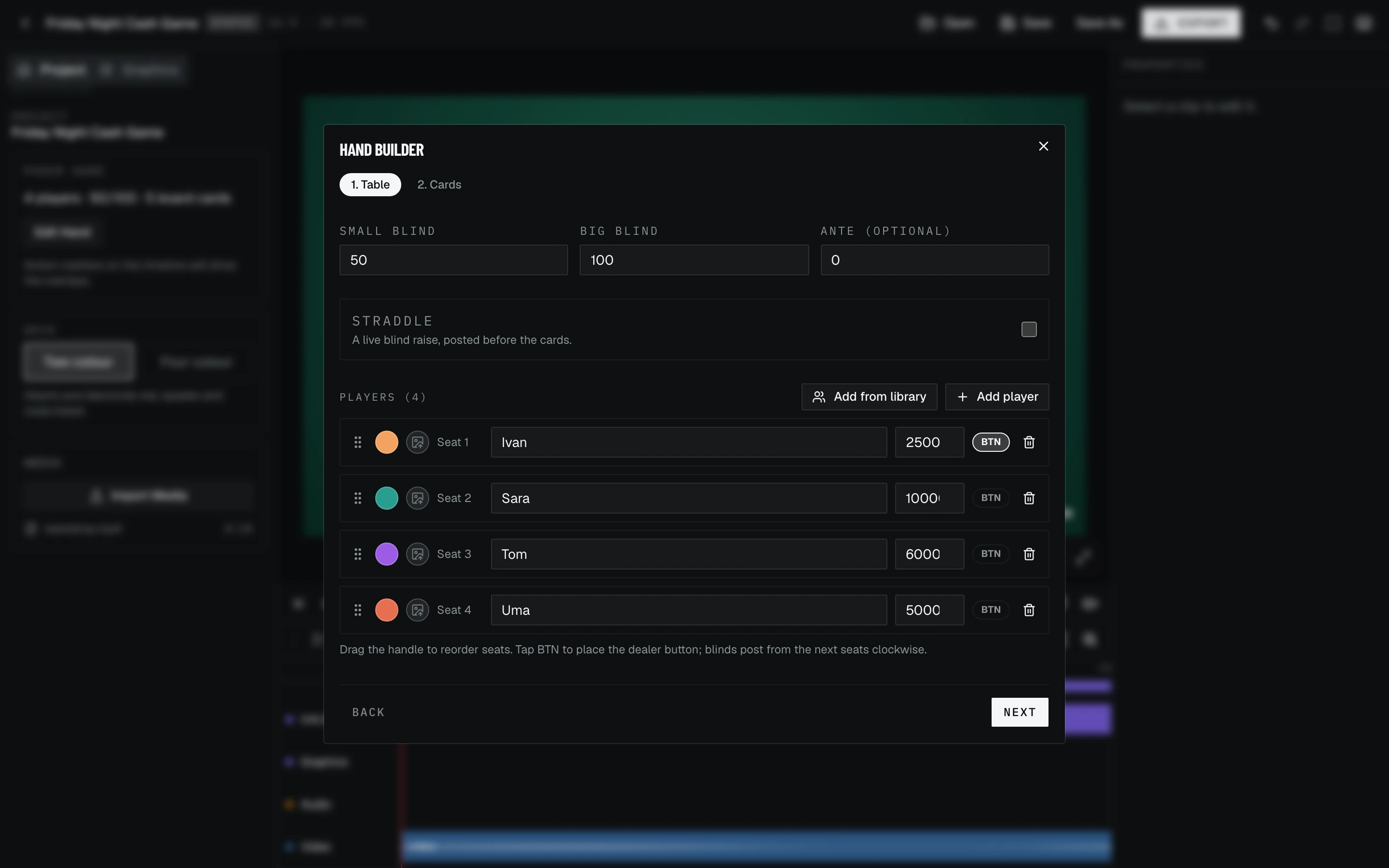
Tell it who is at the table and what they are holding.
Players and their seats, the blinds, everyone's starting stack, and the hole cards you want shown. This is the hand itself — not its timing — so it can be filled in before you have touched the video at all.
Mark the action
Play the video, and press each thing as it happens.
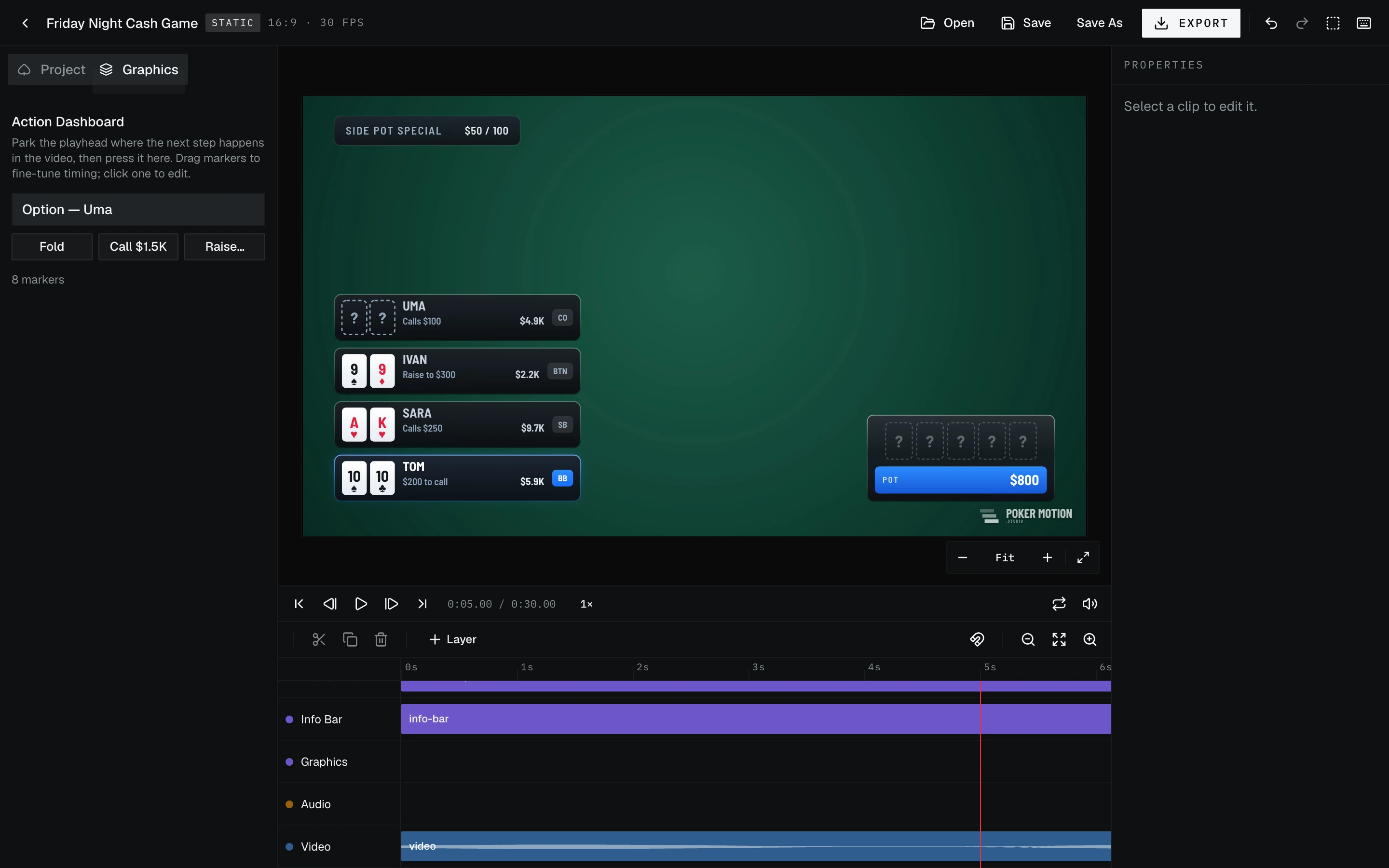
The Action Dashboard always offers the next legal step and nothing else: whoever is to act, with only the moves actually open to them, then the flop, turn and river as betting closes, then showdown. Each press drops a marker at the playhead, and the overlays follow from there.
Because it only ever offers what is legal, the graphics cannot drift out of step with the hand. Drag a marker to fix its timing, or click one to edit it.
Add the finishing touches
Check nothing important is under a platform's furniture, then place it.
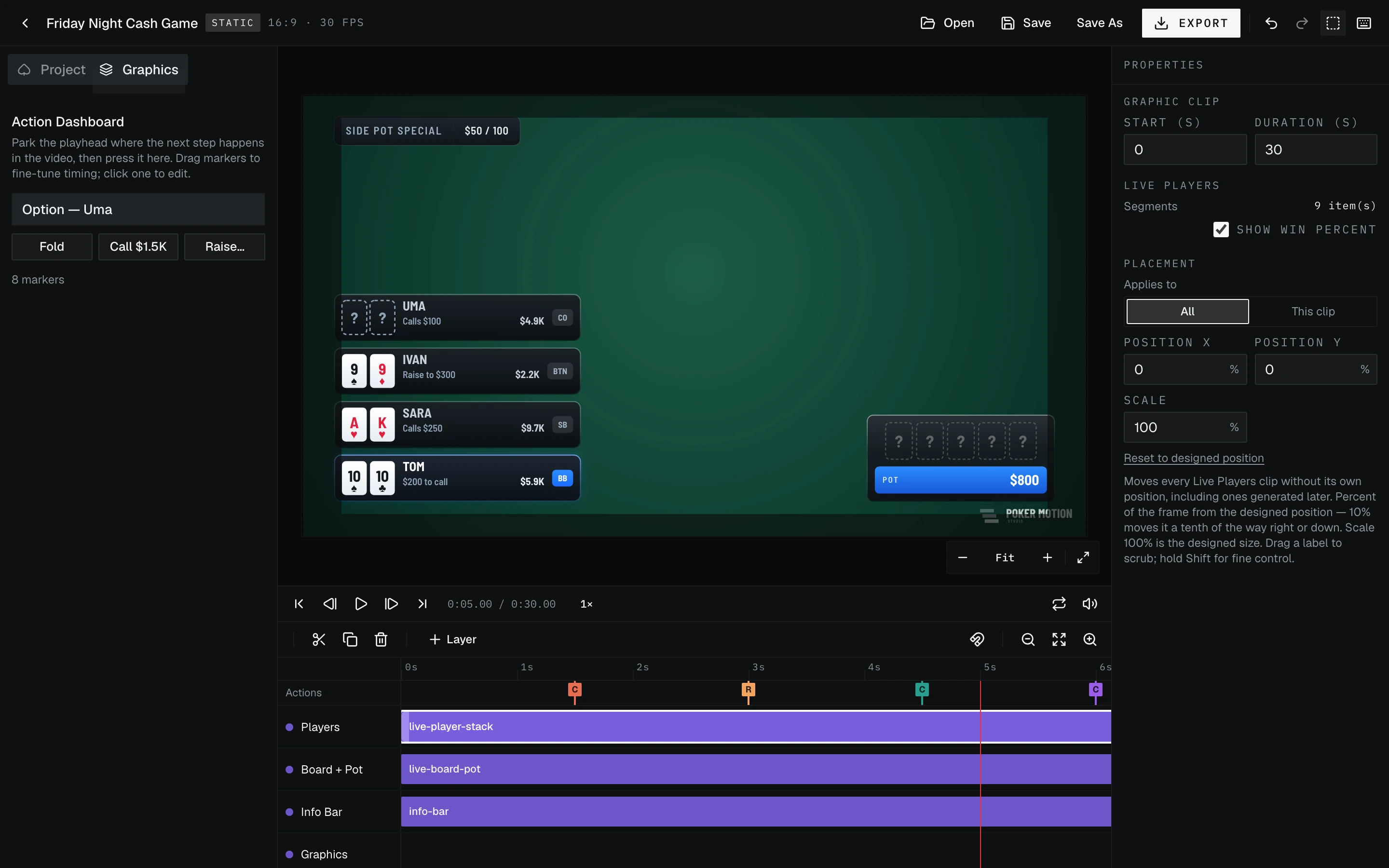
The safe-area guide greys out where Instagram or TikTok will put its own buttons and captions, so you can see what a viewer will actually see. Select any element to scale it or move it, and it scales from its own corner — an info bar in the top left stays in the top left.
Render and export
Straight to an MP4, rendered in your browser.
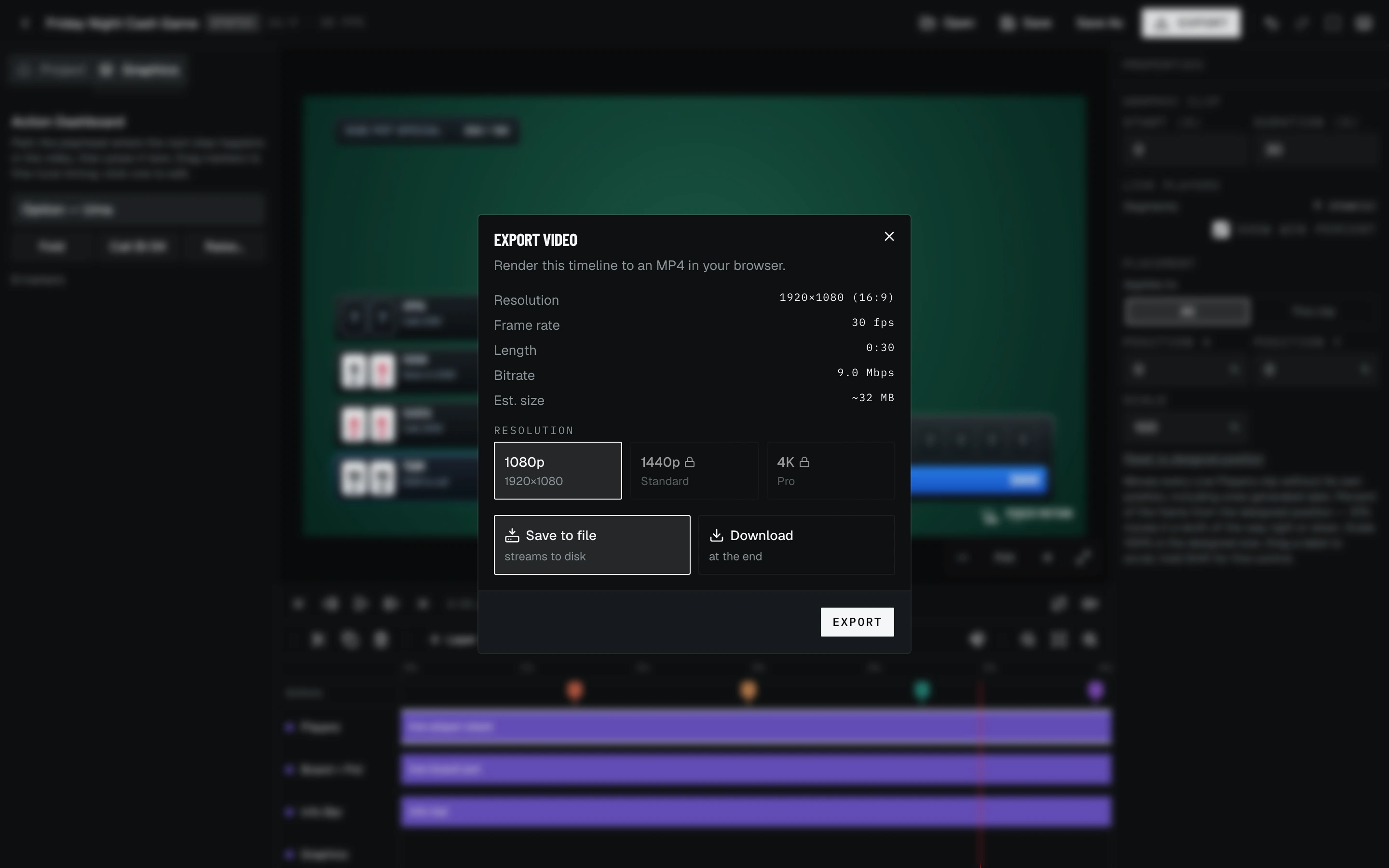
Pick a resolution and frame rate and it tells you the length, the bitrate and roughly how big the file will be before it starts. Save it to disk as it renders, or download it at the end.
1080p on every plan, 1440p on Standard, 4K and 60fps on Pro. Free exports carry a watermark; paid plans do not.
One more thing
What Creator mode does differently
Same hand, same design sets, a different shape of video.
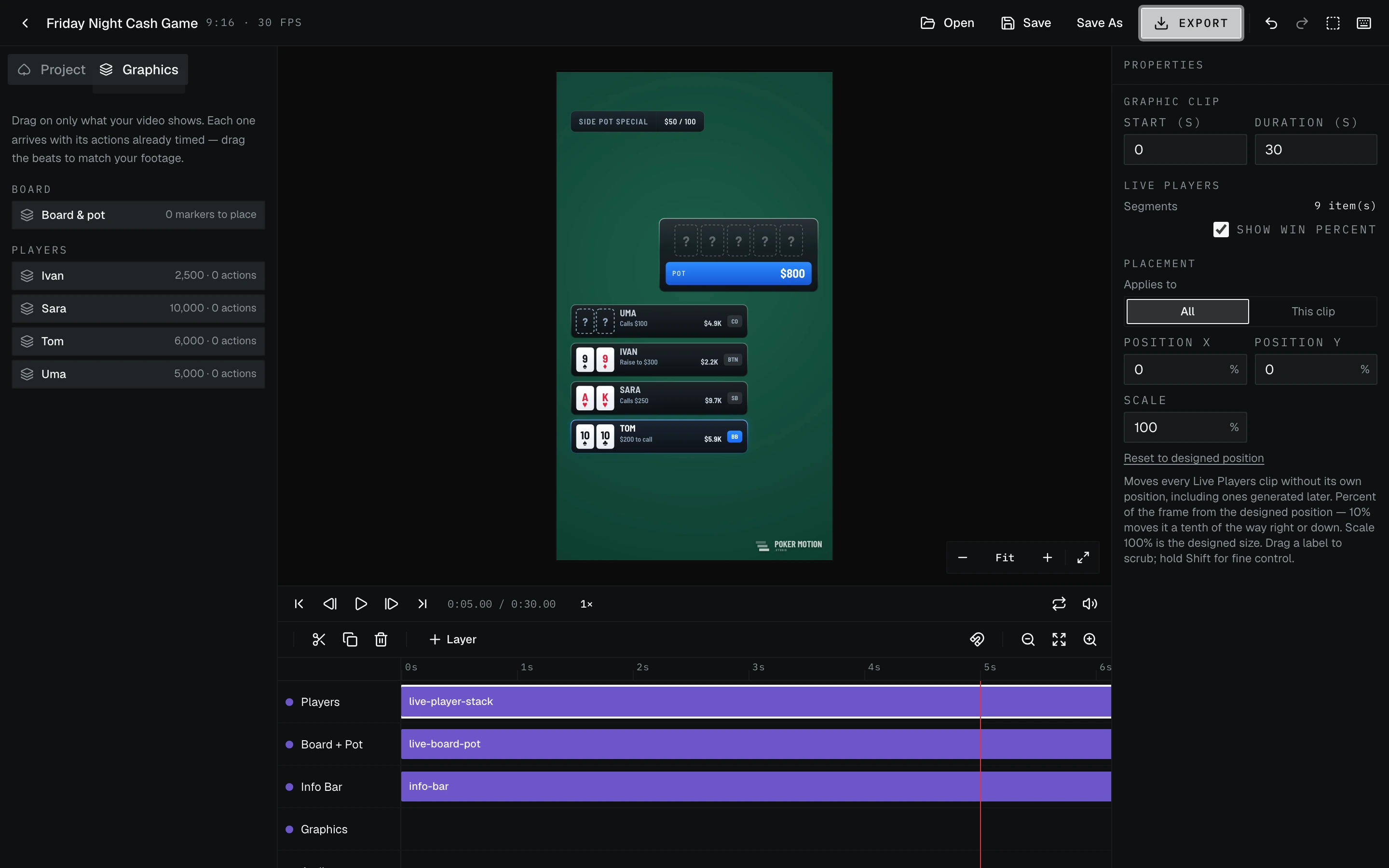
Broadcast puts the whole table on screen and keeps it there. Creator is built for a vertical cut about one or two players: you bring on only the people the video is about, hole cards stay hidden until you place a reveal, and win percentage is off by default.
The timing works differently too. Instead of a ladder of legal actions, the hand’s events arrive as draggable beats on the clips themselves — and you can sync them by ear, playing the shot and tapping M once per event.
Steps three to seven above are the same in both modes. Only the way you place the action changes.
Not open yet
This is what the product does today. Sign-ups open at launch — until then, the waitlist is on the home page.